---
title: How to create promotions for Expedia
description: Learn how to set up promotions easily to help your property stand out on Expedia. This guide walks you through the process, step by step.
---
[Skip to content](https://help.hotellinksolutions.com/how-to-create-promotions-for-expedia#main-content)
English
Show submenu for translations
[Suggest a New Article](https://help.hotellinksolutions.com/kb-tickets/new?hsLang=en) [Customer portal](https://help.hotellinksolutions.com/tickets-view?hsLang=en)
[](https://help.hotellinksolutions.com/?hsLang=en)
Open main navigation
Close main navigation
- English
Show submenu for translations
- [Suggest a New Article](https://help.hotellinksolutions.com/kb-tickets/new)
- [Customer portal](https://help.hotellinksolutions.com/tickets-view)
Welcome to the Hotel Link help centre
- There are no suggestions because the search field is empty.
1. [Help Center](https://help.hotellinksolutions.com/?hsLang=en)
2. [Booking Engine](https://help.hotellinksolutions.com/booking-engine?hsLang=en)
3. [Special Offers](https://help.hotellinksolutions.com/booking-engine?hsLang=en#special-offers)
# How to create promotions for Expedia
## Learn how to set up promotions easily to help your property stand out on Expedia. This guide walks you through the process, step by step.
If you have not activated the connection with Expedia, read [this article.](https://help.hotellinksolutions.com/how-to-connect-to-expedia?hsLang=en)
### What is a promotion?
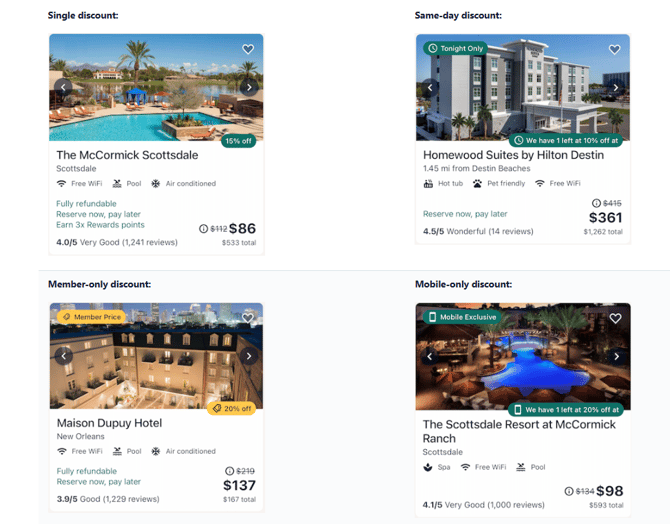
A promotion is a discount or special offer you set up on the Expedia platform or other OTAs to encourage travellers to book your property. Promotions can offer a percent-based discount on stays for select dates to travellers browsing Expedia alongside your property.
### Why you need it
Promotions help increase the visibility and competitiveness of your property on Expedia. Here's why they matter for your property:
- Boost visibility: Expedia often prioritizes discounted rates in search results and filters, helping your property get seen by more travellers.
- Increase Bookings: Attract more guests by offering special rates and attractive deals. Promotions can make your property more appealing to travellers and encourage them to make a booking at your property.
- Stay competitive: A well-timed promotion helps your property stand out against similar properties in your area.
### Step-by-Step Guide
To create a promotion for Expedia directly from our system, please follow the steps below:
1. Log in Hotel Link extranet.
2. Go to [Booking Engines \> Special Offers](https://extranet.hotellinksolutions.com/#/booking-engine/special-offers/) tab.
3. Select Expedia to create a promotion.
4. In the left-hand menu, click 'create new special offer.'
5. Fill in the corresponding information to complete the process:
- Type: The kind of promotion you want to create. There are 3 types of promotions:
- Single discount: Offer percentage-based discounts (between 1 - 75%) for all nights of a stay (such as 10% off).
- Multi night discount: Used for extended lengths of stay, where a specific night within the stay can be discounted, allowing you to reward travellers who stay longer (e.g., "Stay 3 nights and get the 3rd night at 40% discount").
- Day of week discount: Set discount percentages for specific days of the week (such as Mondays at 10%, Tuesdays at 12%, and so on) to help manage occupancy fluctuations.
1. - Is Member Only: Define if the promotion is only available to Expedia members.
- Is Mobile User Only: Define if the promotion is only available to mobile users.
- Name: Add an internal label name for this specific promotion.
- Promotion Name: Select a promotion category for setting a discount
(e.g., BASIC\_PROMOTION, MULTI\_NIGHT\_PROMOTION).
- Rate discount: Add the discount percentage applied per night. When discount unit is percentage, the value can only be between 1 and 75.
- Minimum Length of Stay: Set the minimum number of nights to receive the discount.
- Maximum Length of Stay: Set the maximum number of nights to receive the discount.
- Only Apply Special Offer to Rate Plans: Set the specific room types/rate plans this promotion will apply to.
- Purchase Dates Restricted to: Add the dates when this special can be booked within the applied date.
- Stay Dates Restricted to: Set the date range during which the stay itself must fall to qualify.
- Excluded Stay Dates *(optional)*: Set specific dates within the stay date range that are excluded from the promotion.
**Note:**
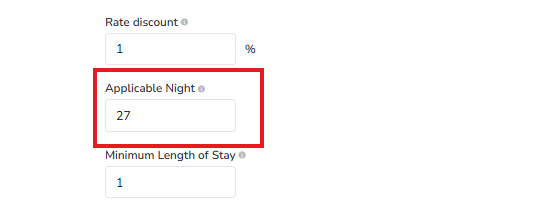
- **Applicable Night** *(Multi Night Discount only):* Set applicable night to which the discount is applied from the 2nd night. Permitted values are 2 to 28.
For example: Applicable night is set to 27, which means that the discount will be applỉed from the 27th night.
- **Mon–Sun** *(Day Of Week Discount only)*: Set the discount percentage set for each individual day of the week. The day fields specify the discount for that day of the week for the travel date. For example: Monday: 15% should be represented as 15, Tuesday with 10% discount, Wednesday 1% discount and so on.

Once done, click 'Save' to apply changes.
### Sell Status
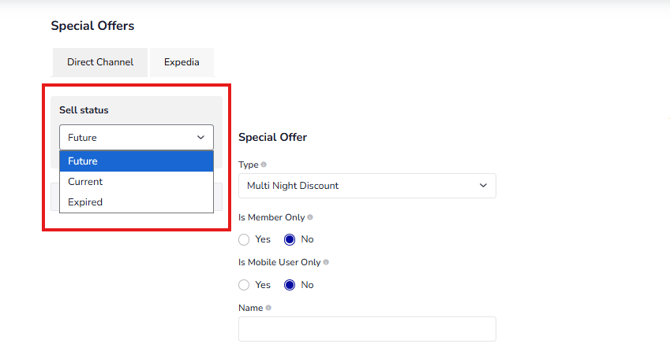
Sell Status shows whether a promotion is currently bookable or not by travellers, based on its booking date/time range. It reflects the promotion's actual booking window compared to today's date.
There are three possible values:
- **Future**: the promotion isn't bookable yet, but will become available once its booking window starts.
- **Current**: the promotion is bookable now, since today's date falls within its booking window.
- **Expired**: the promotion is no longer bookable because its booking window has ended, even if the stay dates that the promotion applies to are still in the future.
**Note:** A promotion showing as "Current" may still be unavailable to travellers if other restrictions apply, such as rate plan eligibility or stay date limits.
### Video
00:00: In this video, we'll show you how to create promotions for Expedia.
00:03: We'll walk you through each step of the process.
00:07: To create a promotion for Expedia,
00:08: you need to go to the Booking Engine and select the Special Offers tab.
00:14: Then choose Expedia.
00:16: In the left-hand menu, click Create New Special Offer.
00:19: Here you can select any type of promotions to create to Expedia.
00:25: Select from Single Discount, Multi Night Discount, or Day Of Week Discount types.
00:30: Fill in the details for the selected discount types to configure the promotion.
00:35: Add an internal label name for this specific promotion
00:39: Select a promotion category for setting a discount
00:42: If you select Day of week discount, you need to set discount percentages for
00:46: specific days of the week
00:49: For example, setting discount of 20% for Tuesday
00:53: Set the minimum and maximum number of nights to receive the discount.
00:58: Set the specific room types/rate plans this promotion will apply to.
01:02: Add the purchase dates and stay dates
01:04: when this special can be booked within the applied range.
01:07: The stay start date has to be greater than the purchase start date.
01:10: Once done, click 'Save'.
01:21: Now it is no longer future.
01:22: It will be the current special offer now.
01:25: Now go to Expedia to check out the promotion that you have just created from Hotel Link.
01:31: Go to the Marketing tab, click on the Promotions.
01:34: Here, you can see the discount that you have just created.
01:38: With the booking date from 6 October and stay date from 7 October.
01:43: Click "Open details for Single discount 2027" to view more information about the discount.
01:49: Once the purchase dates are over, the promotion is no longer available. It becomes expired.
01:55: Thank you for watching this training video.
01:56: If you have any questions, don't hesitate to contact your support team.
02:01: See you in the next tutorial!
If you have any difficulties when creating promotions for Expedia channel, please contact your local partner or Hotel Link Global Support team (support@hotellinksolutions.com) for better assistance.
- [Channel Manager](https://help.hotellinksolutions.com/channel-manager?hsLang=en#main-content)
- [Overview](https://help.hotellinksolutions.com/channel-manager?hsLang=en#overview)
- [OTA Connection](https://help.hotellinksolutions.com/channel-manager?hsLang=en#ota-connection)
- [Booking.com](https://help.hotellinksolutions.com/channel-manager?hsLang=en#booking-com)
- [Airbnb](https://help.hotellinksolutions.com/channel-manager?hsLang=en#airbnb)
- [Expedia](https://help.hotellinksolutions.com/channel-manager?hsLang=en#expedia)
- [Trip.com](https://help.hotellinksolutions.com/channel-manager?hsLang=en#trip-com)
- [Other OTAs/PMSs](https://help.hotellinksolutions.com/channel-manager?hsLang=en#other-otas-pmss)
- [OTA Settings & Features](https://help.hotellinksolutions.com/channel-manager?hsLang=en#ota-settings-features)
- [Integration via Hotel Link API](https://help.hotellinksolutions.com/channel-manager?hsLang=en#integration-via-hotel-link-api)
- [Smart Rate](https://help.hotellinksolutions.com/channel-manager?hsLang=en#smart-rate)
- [OTA Errors & Alerts](https://help.hotellinksolutions.com/channel-manager?hsLang=en#ota-errors-alerts)
- [Booking Engine](https://help.hotellinksolutions.com/booking-engine?hsLang=en#main-content)
- [Rooms](https://help.hotellinksolutions.com/booking-engine?hsLang=en#rooms)
- [Setup](https://help.hotellinksolutions.com/booking-engine?hsLang=en#setup)
- [Bookings](https://help.hotellinksolutions.com/booking-engine?hsLang=en#bookings)
- [Special Offers](https://help.hotellinksolutions.com/booking-engine?hsLang=en#special-offers)
- [Yield Management](https://help.hotellinksolutions.com/booking-engine?hsLang=en#yield-management)
- [Payment Methods setting](https://help.hotellinksolutions.com/booking-engine?hsLang=en#payment-methods-setting)
- [Rates, Availability, and Other Restrictions](https://help.hotellinksolutions.com/booking-engine?hsLang=en#rates-availability-and-other-restrictions)
- [Booking conditions](https://help.hotellinksolutions.com/booking-engine?hsLang=en#booking-conditions)
- [Front Desk](https://help.hotellinksolutions.com/front-desk?hsLang=en#main-content)
- [Calendar](https://help.hotellinksolutions.com/front-desk?hsLang=en#calendar)
- [Managing Bookings in the Calendar](https://help.hotellinksolutions.com/front-desk?hsLang=en#managing-bookings-in-the-calendar)
- [Guest Emails](https://help.hotellinksolutions.com/front-desk?hsLang=en#guest-emails)
- [Housekeeping & other settings](https://help.hotellinksolutions.com/front-desk?hsLang=en#housekeeping-other-settings)
- [Website](https://help.hotellinksolutions.com/website?hsLang=en#main-content)
- [Template](https://help.hotellinksolutions.com/website?hsLang=en#template)
- [Basic & Requirement Settings](https://help.hotellinksolutions.com/website?hsLang=en#basic-requirement-settings)
- [Additional Settings](https://help.hotellinksolutions.com/website?hsLang=en#additional-settings)
- [SEO & Google Analytics](https://help.hotellinksolutions.com/website?hsLang=en#seo-google-analytics)
- [Booking Widget](https://help.hotellinksolutions.com/booking-widget?hsLang=en#main-content)
- [Getting Started](https://help.hotellinksolutions.com/booking-widget?hsLang=en#getting-started)
- [Widget Settings](https://help.hotellinksolutions.com/booking-widget?hsLang=en#widget-settings)
- [Website Integration](https://help.hotellinksolutions.com/booking-widget?hsLang=en#website-integration)
- [Hotel Group](https://help.hotellinksolutions.com/booking-widget?hsLang=en#hotel-group)
- [Availability & Display](https://help.hotellinksolutions.com/booking-widget?hsLang=en#availability-display)
- [Hotel Link Pay](https://help.hotellinksolutions.com/hotel-link-pay?hsLang=en#main-content)
- [Overview and benefits](https://help.hotellinksolutions.com/hotel-link-pay?hsLang=en#overview-and-benefits)
- [How to use](https://help.hotellinksolutions.com/hotel-link-pay?hsLang=en#how-to-use)
- [Payout](https://help.hotellinksolutions.com/hotel-link-pay?hsLang=en#payout)
- [Errors](https://help.hotellinksolutions.com/hotel-link-pay?hsLang=en#errors)
- [FAQs](https://help.hotellinksolutions.com/hotel-link-pay?hsLang=en#faqs)
- [Reports](https://help.hotellinksolutions.com/reports?hsLang=en#main-content)
- [Revenue Reports](https://help.hotellinksolutions.com/reports?hsLang=en#revenue-reports)
- [Payment Reports](https://help.hotellinksolutions.com/reports?hsLang=en#payment-reports)
- [Extranet](https://help.hotellinksolutions.com/extranet?hsLang=en#main-content)
- [Login & Access](https://help.hotellinksolutions.com/extranet?hsLang=en#login-access)
- [System & Operations](https://help.hotellinksolutions.com/extranet?hsLang=en#system-operations)
- [Setup & Configuration](https://help.hotellinksolutions.com/extranet?hsLang=en#setup-configuration)
- [TODOLIST feature](https://help.hotellinksolutions.com/extranet?hsLang=en#todolist-feature)
- [Mobile App](https://help.hotellinksolutions.com/extranet?hsLang=en#mobile-app)
- [Partners](https://help.hotellinksolutions.com/partners?hsLang=en)
- [Release Notes](https://help.hotellinksolutions.com/release-notes?hsLang=en#main-content)
- [Aug 2025](https://help.hotellinksolutions.com/release-notes?hsLang=en#aug-2025)
- [Sep 2025](https://help.hotellinksolutions.com/release-notes?hsLang=en#sep-2025)
- [Oct 2025](https://help.hotellinksolutions.com/release-notes?hsLang=en#oct-2025)
- [Dec 2025](https://help.hotellinksolutions.com/release-notes?hsLang=en#dec-2025)
- [Jan 2026](https://help.hotellinksolutions.com/release-notes?hsLang=en#jan-2026)
- [Feb 2026](https://help.hotellinksolutions.com/release-notes?hsLang=en#feb-2026)
- [May 2026](https://help.hotellinksolutions.com/release-notes?hsLang=en#may-2026)
- [June 2026](https://help.hotellinksolutions.com/release-notes?hsLang=en#june-2026)
- [July 2026](https://help.hotellinksolutions.com/release-notes?hsLang=en#july-2026)
- [Aug 2026](https://help.hotellinksolutions.com/release-notes?hsLang=en#aug-2026)
- [Sep 2026](https://help.hotellinksolutions.com/release-notes?hsLang=en#sep-2026)
- [Oct 2026](https://help.hotellinksolutions.com/release-notes?hsLang=en#oct-2026)
- [MISC](https://help.hotellinksolutions.com/misc?hsLang=en#main-content)
- [Logs](https://help.hotellinksolutions.com/misc?hsLang=en#logs)
- [Revenue Management](https://help.hotellinksolutions.com/revenue-management?hsLang=en#main-content)
- [PriceLabs](https://help.hotellinksolutions.com/revenue-management?hsLang=en#pricelabs)
[](https://help.hotellinksolutions.com/?hsLang=en)
Copyright © 2026. Hotel Link.