
Why you need to know the reasons
When an overbooking case happens, resolving the booking alone is not enough. You also need to understand why it occurred to prevent similar cases in the future.
By reviewing the common reasons first, you can quickly identify whether the issue comes from system configuration, channel mapping, or synchronization gaps. This helps reduce investigation time and ensures your availability remains accurate across all connected channels.
The common reasons
Below are the most common causes of overbooking. Please review these areas first when you encounter a case:
1. Close booking timing (Simultaneous bookings)
Why it causes overbooking
This happens because inventory synchronization across channels takes 2 minutes, not instantly.
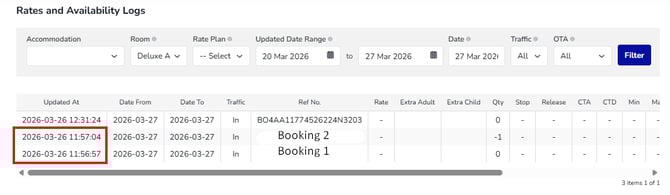
The Channel Manager updates availability right after each booking. However, when multiple bookings happen within the same minute, the system does not have enough time to sync inventory across all channels before the next booking comes in.
As a result, during this time, another booking can still be made for the same room before availability is fully updated. This is a known limitation and can occur with any Channel Manager.
How to check
To check this case, you can use Rates & Availability log to check the booking logs. To learn how to use this log, read this article.
2. Incorrect OTA mapping
Why it causes overbooking
A mismatch in mapping, such as:
- One rate plan in Hotel Link mapped to multiple rate plans in the OTA, or
- Multiple rate plans in Hotel Link mapped to one rate plan in the OTA
This creates inconsistent allotment handling, where availability may be deducted incorrectly or duplicated across mappings.
For example:
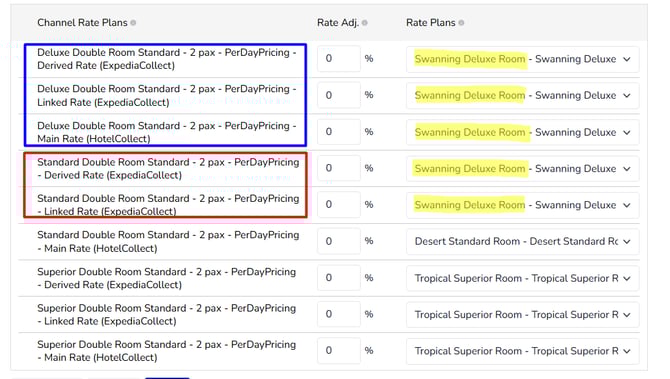
Hotel Link rate plan (Swanning Deluxe Room) is mapped with two different OTA rate plans: Deluxe Double Room Standard - 2 pax - PerDayPricing and Standard Double Room Standard - 2 pax - PerDayPricing. This is considered as incorrect OTA mapping and can lead to overbooking case.
How to check
To check if OTA mapping is correct or not, you need to access Channel Mapping > Select OTA > check the mapping.
What you need to do
- Review all rate plan mappings
- Ensure a clear and consistent mapping structure (ideally 1:1)
- Once you have updated the mapping, click 'Save' to update the data accordingly.
3. Main rate plan not mapped
Why it causes overbooking
The main rate plan is not mapped, so no availability updates are sent to the OTA.
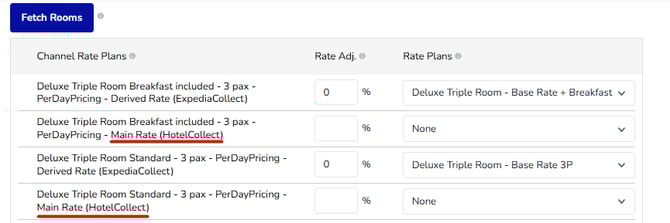
The Channel Manager only sends updates (availability, rates, restrictions) to main rate plans. Derived rate plans (child rate plans, read only rate plans) are only used to receive bookings and will not directly receive updates from Channel Manager. They will derive rates, allotments and other restrictions from the linked main rate plans in OTA.
When the main rate plan is not mapped, derived rate plans continue selling based on outdated allotment. This can result in bookings being accepted even when rooms are no longer available.
How to check
To check if the main rate plans are mapped correctly or not, you need to access Channel Mapping > Select OTA > check the mapping.
What you need to do
- Ensure the main rate plan is mapped correctly
- Verify derived rate plans are linked to the correct main rate plan on the OTA
- Update mapping if needed and trigger a full inventory sync
- Avoid mapping only derived rate plans
4. Modifying booked room types on Hotel Link instead of OTA
Why it causes overbooking
Modifying booked room types on Hotel Link instead of the OTA disrupts the automatic sync between the two systems, which can lead to overbooking.
Room type structure must remain consistent for bookings and availability updates to align correctly. When booked room types are changed only on Hotel Link:
- The booked room type from the OTA may no longer match the room type in Hotel Link
- The system may not deduct availability from the correct room
As a result, availability is updated incorrectly, and rooms may continue to be sold even though they are already booked, leading to overbooking.
How to check
- Compare booked room type from the OTA with the room type shown in Hotel Link
- Check if the booking is assigned to the correct room type in the system
What you need to do
-
For overbooking has already happened:
-
Correct the booked room type on the OTA to match what is on Hotel Link, so the two systems are back in sync.
-
Manually close availability for the affected room type on the OTA to stop further bookings from coming in.
- Manually update the allotment on the Channel Manager to reflect the correct availability.
-
- To avoid similar cases:
- Always make room type changes on the OTA first. Once updated on the OTA, the change will flow through to Hotel Link correctly, keeping both systems aligned.
- Never modify a booked room type directly on Hotel Link. Changes made only on Hotel Link are not recognized by the OTA, which breaks the sync flow.
If you are experiencing overbooking that does not fall into any of the cases mentioned above, please reach out to your local partner for further assistance. While waiting for the final conclusion, the following steps should be taken immediately:
- Manually close availability for the affected room type on the OTA to stop further bookings from coming in.
- Contact the affected guests as early as possible to inform them of the situation and arrange an alternative room or property.
- Manually update the allotment on the Channel Manager to reflect the correct availability.