
Activate Hotel Link Pay
To schedule payment, you first need to activate Hotel Link Pay. For more information, click here.
Step-by-step guide
Once Hotel Link Pay is activated, follow the steps below to schedule a payment:
- Go to the booking details of any booking, even bookings from OTAs
- Scroll down to Payments section > Actions
- In the Actions menu, select 'Schedule new payment'.
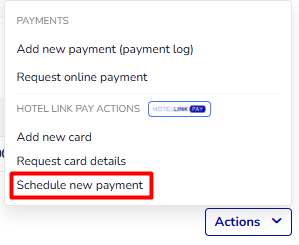
-
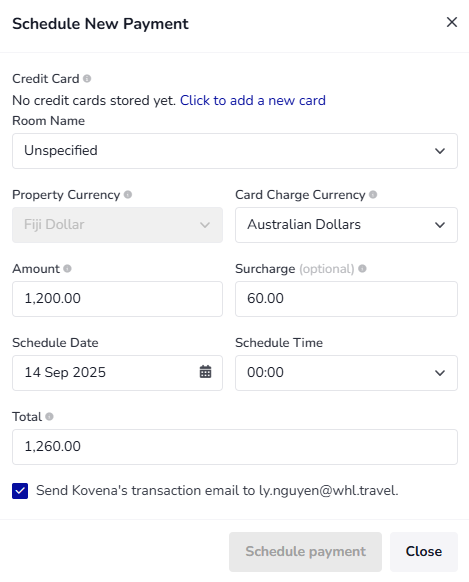
When the Schedule New Payment window appears, enter the required information as shown below:
-
Credit card: If the credit card is not included in the booking, you need to add a new card first. Once you have added the card, the system will select the card to make a payment.

- Room name (only for Front Desk users): this field will automatically filled based on the allocated room of the booking. If the booking is not allocated to any room, this field will show "Unspecified'.
- Property Currency: This is the default currency used in the Booking Engine.
- Card Charge Currency: The currency that is activated for Hotel Link Pay. To change this setup, go to Payment methods page > Select Hotel Link Pay
- Amount: The booking amount paid or to be paid by the guest. You can adjust the amount accordingly.
- Surcharge (optional): The surcharge to receive the payment. The default amount on this field is calculated based on the surcharge defined in the Booking Engine > Payment Methods. You can adjust this surcharge amount.
- Total: The total booking amount (amount and surcharge) that the guest has to pay. This field will automatically change based on amount and surcharge. You cannot change this field.
- Schedule Date: Select the date (before the check-out date) that you want the guest to make a payment.
- Schedule Time: Select the time that you want the guest to make a payment.
-
- Once done, click 'Schedule payment'.
The payment record will show as below:

Edit, cancel or view payment log
To edit, cancel or view payment log of a payment record, click the 3-dot menu:

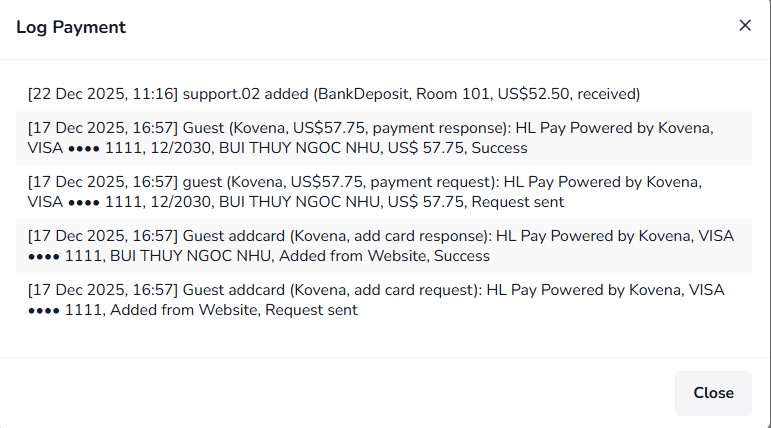
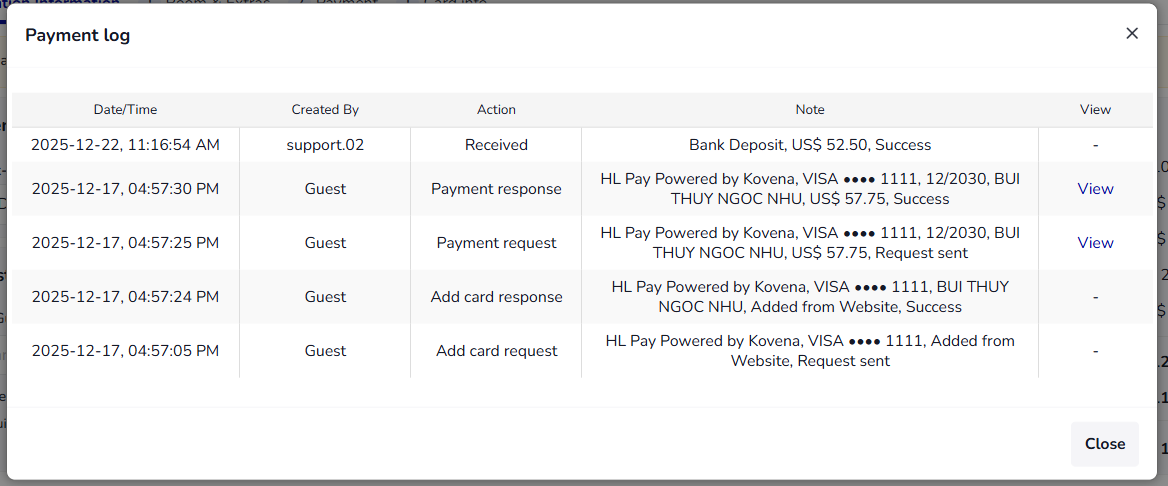
For payment log, there are 2 ways to view the payment:
- Via the 3-dot menu: To view the summary of the transactions:
- Via the More > Payment Log: You can view the details and also view the detailed log of the transactions in 'View' column:

This article is for setting up an automatic charge for future payment with Hotel Link Pay. If you want to make automatic schedule payment for direct bookings (bookings from Website and Booking Widget) at the booking time, you can set up the Settlement here.