
Scenario
When a guest books within the cancellation policy period, which means their booking date is too close to the arrival date. However, the Booking Widget still displays both the free-cancellation rate plan and the non-refundable rate plan at the same time. Since the booking date already falls within the non-refundable window, showing a flexible rate plan alongside it is misleading and confusing for travellers.
This guide shows you how to configure the Booking Widget to automatically hide the flexible rate plan and show only the non-refundable rate when the booking date falls within that period.
How it works
By combining a Special Offer with a custom Booking Condition, your Booking Widget will automatically switch between two scenarios:
- Booking outside the cancellation period: the rate plan displays with a Free cancellation label.
- Booking within the cancellation period: only the non-refundable rate plan is shown, with the discounted price and a No refund label.
Step-by-step guide
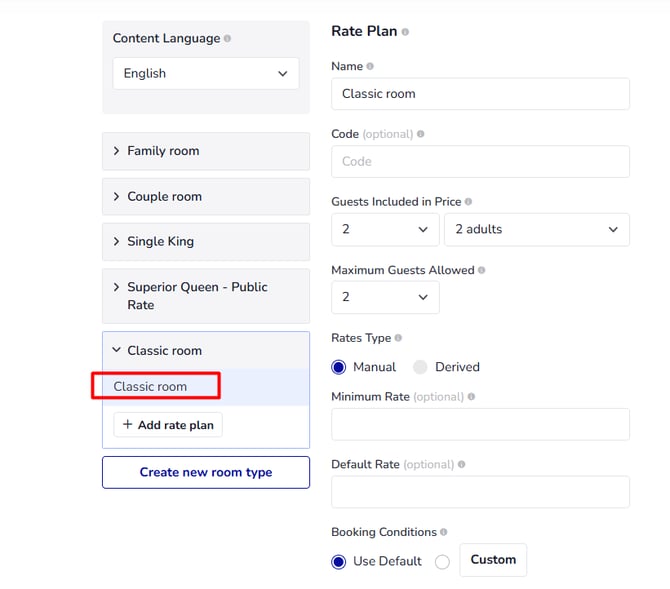
Step 1: Create a rate plan
Create one rate plan with the same name as the room type and use the 'Default' booking conditions. Do not name it "Flexible" or "Non-refundable".
Step 2: Create a Special Offer:
- Set the basic details: Create a new Special Offer.
- Set the Name: No Refund
- Type: Fixed Value Per Night
- Rate Discount (e.g. 10%).
This only applies for cases that you offer a discount for Non-refundable rate plans. If you do not offer any discount for Non-refundable rate plans, set rate discount = 0 - Must be Booked: Select Within and enter the number of days before arrival that defines your non-refundable window. This number = Free-cancellation number of days – 1.
For example: free cancellation more than 5 days before arrival; non-refundable within 5 days of arrival: Set the number here = 4 - Apply to the correct room and rate plan: Under Only Apply Special Offer to, select the room type and rate plan this offer should apply to.
- Set Booking Conditions to Custom: Under Booking Conditions, select Custom. In the dialog, set:
- Deposit Type: No deposit
- Cancellation Rule and Fee: Full amount for both No-show and 0 to ∞ days before arrival
- Click OK to confirm.
Step 3: Contact the Global Support team
Once your rate plan and Special Offer are set up, contact the Global Support team (support@hotellinksolutions.com) to request that the setting "Show all rate plans of a room type having different cancellation policies" is switched to No for your property. This is what triggers the widget to show only the non-refundable rate plan when the booking falls within the cancellation period.
For example:
Today = 3 June 2026, free cancellation more than 5 days before arrival; non-refundable within 5 days of arrival:
- Make a reservation for 8 June 2026 (> 5 days before arrival):
- Make a reservation for 4 June 2026 (non-refundable within 5 days of arrival):