![hotellink-logo-white.png]](https://help.hotellinksolutions.com/hs-fs/hubfs/hotellink-logo-white.png?height=35&name=hotellink-logo-white.png)
What is setting up room and rate plan content for Booking.com?
This feature helps you create and link room types and rate plans content between Hotel Link and Booking.com. It makes sure the content such as how many guests (pax), room photos, meals, rate plan conditions, room name, and other room details is the same on Hotel Link and on Booking.com. When you set it up on Hotel Link's end, those room details are synced automatically without accessing to Booking.com and update the content manually.
How to use this feature
To use this feature, you have to activate Booking.com first. To know how to activate Booking.com connection, read this article.
In case you would like to manage multiple properties, you can read this article.
In this article, there will be 4 sections:
How to set up room content for Booking.com
-
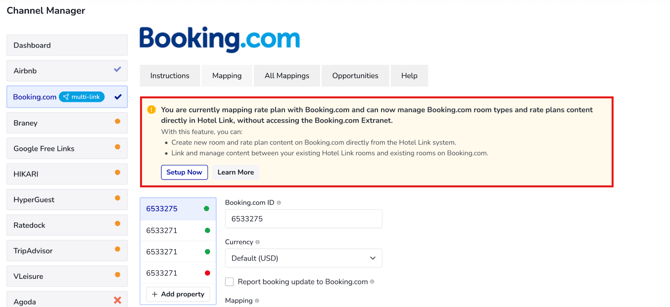
On the Booking.com mapping page, there will be a popup as following:
-
Click Setup now to be redirected to Rooms page > OTA channels > Booking.com.
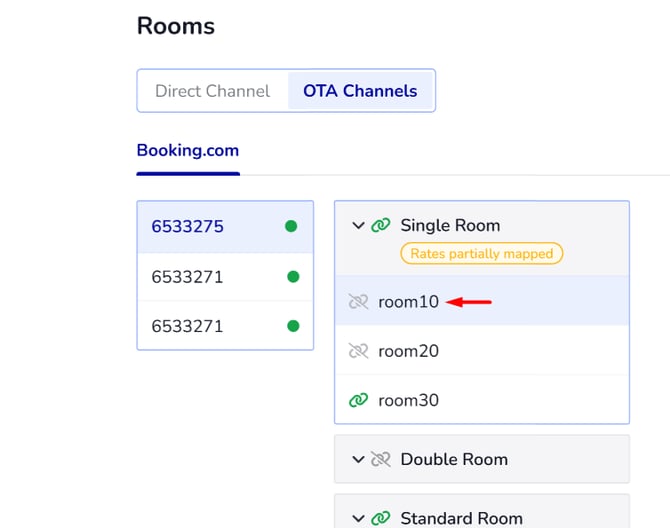
- On the Booking.com tab, there will be a list of active Booking.com's properies IDs. You can set up room type and rate plan content for each property ID. For each property ID, you will see mapped/upmapped icon of room type and the mapping status chip of its rate plans.
Here are the details: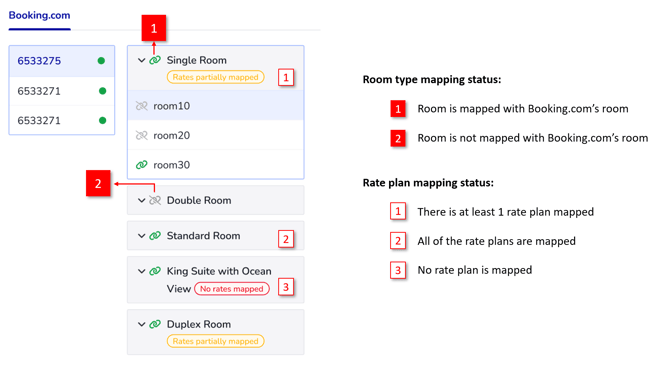
- On this page, choose one of the following options to continue:
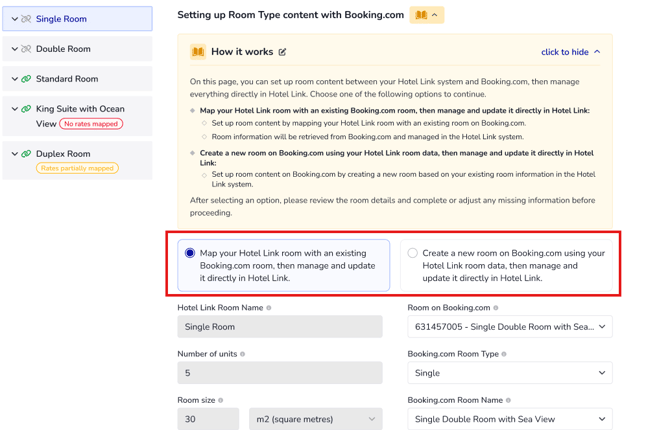
- Option 1: Map your Hotel Link room with an existing Booking.com room, then manage and update it directly in Hotel Link (there are existing rooms on both Hotel Link and Booking.com):
- Set up room content by mapping your Hotel Link room with an existing room on Booking.com.
- Room information will be retrieved from Booking.com and managed in the Hotel Link system.
- Option 2: Create a new room on Booking.com using your Hotel Link room data, then manage and update it directly in Hotel Link (there is an existing room data on Hotel Link, no room on Booking.com):
- Set up room content on Booking.com by creating a new room based on your existing room information in the Hotel Link system.
- After selecting an option, please review the room details and complete or adjust any missing information before proceeding.
- Option 1: Map your Hotel Link room with an existing Booking.com room, then manage and update it directly in Hotel Link (there are existing rooms on both Hotel Link and Booking.com):
- After that, set up the content as following:
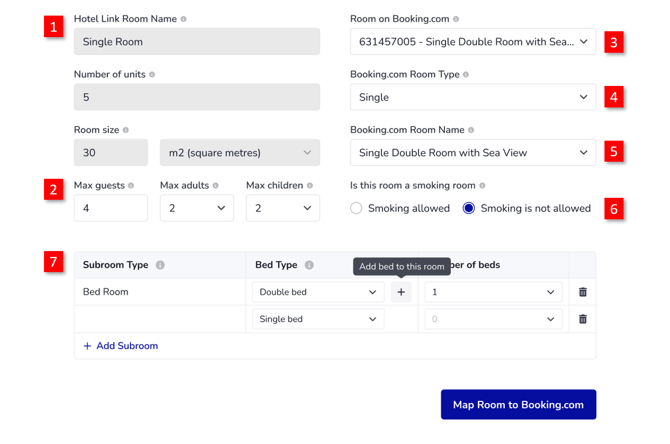
(1): Hotel Link room setup information: The room setup information from the direct channel (Hotel Link) is view-only and cannot be edited on this page.
(2): Room capacity information from Booking.com: The room capacity details are retrieved directly from Booking.com.
(3): Room on Booking.com: When selecting 'Map with an existing room', the 'Room on Booking.com' field is displayed. This field is not displayed if you choose 'Create a new room on Booking.com' option.
(4): Booking.com room type: List of room types from Booking.com
(5): Booking.com room name: List of room names from Booking.com
(6): Smoking policy setup: Configure whether the room is smoking allowed or non-smoking.
(7): Subroom type setup (optional): This setup is ideal when you set up multiple rooms inside of a main room (villa, apartment, cottage, etc.). You can configure its subroom type information (e.g. bed type, number of beds, etc). - Once done, click 'Map room to Booking.com'.
The steps are the same for Option 2: Create a new room on Booking.com. The 'Map room to Booking.com' button will be changed to 'Create Room on Booking.com' accordingly.
The room content mapping does not affect the current Channel Manager mapping. Once a room has been mapped, you cannot map that room again.
How to set up rate plan content for Booking.com
-
After you have set up and map room content for Booking.com, under the room list, click on a rate plan that you would like to set up the content.
If the room type contains the chosen rate plan that is not mapped yet, there will be a warning as following:
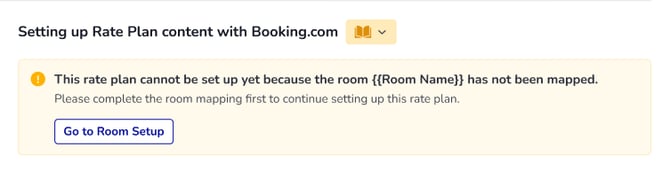
You have to click 'Go to room setup' to complete room content configuration.
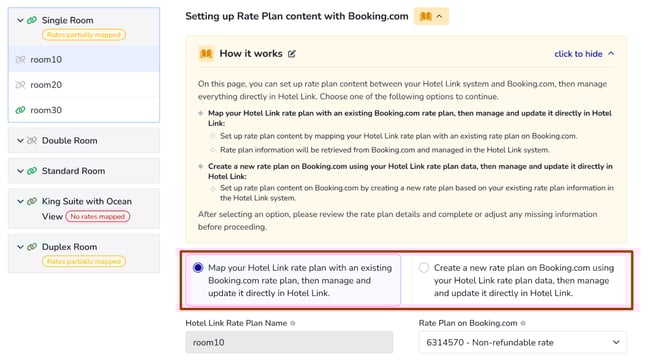
2. On this page, you can set up rate plan content between your Hotel Link system and Booking.com, then manage everything directly in Hotel Link. Choose one of the following options to continue:
-
Option 1: Map your Hotel Link rate plan with an existing Booking.com rate plan, then manage and update it directly in Hotel Link (there are existing rate plans on both Hotel Link and Booking.com):
-
Set up rate plan content by mapping your Hotel Link rate plan with an existing rate plan on Booking.com.
-
Rate plan information will be retrieved from Booking.com and managed in the Hotel Link system.
-
-
Option 2 (coming soon): Create a new rate plan on Booking.com using your Hotel Link rate plan data, then manage and update it directly in Hotel Link (there is an existing rate plan data on Hotel Link, no rate plan available on Booking.com):
-
Set up rate plan content on Booking.com by creating a new rate plan based on your existing rate plan information in the Hotel Link system.
-
After selecting an option, please review the rate plan details and complete or adjust any missing information before proceeding.
-
3. After that, set up the rate plan content as following:
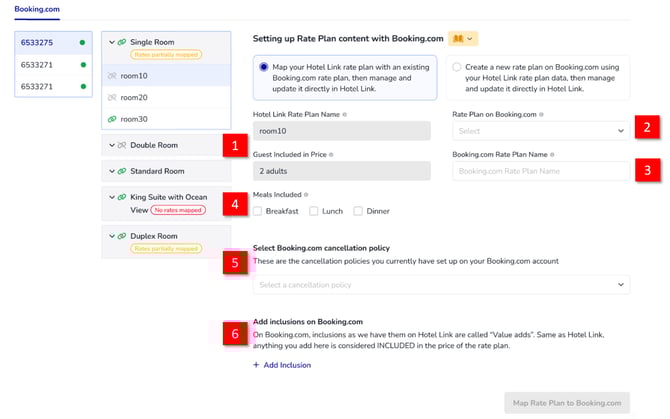
(1): Hotel Link rate plan setup information: The rate plan setup information (Hotel Link Rate Plan Name and Guest Included in Price) from the direct channel (Hotel Link) is view-only and cannot be edited on this page.
(2): Rate plan on Booking.com: When selecting 'Map with an existing rate plan', the 'Rate plan on Booking.com' field is displayed. This field is not displayed if you choose 'Create a new rate plan on Booking.com' option.
(3): Booking.com Rate Plan Name: List of rate plan names from Booking.com.
(4): Meals included: Select if the meals are included or not.
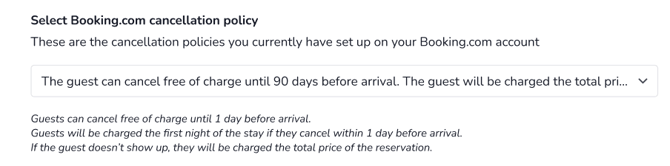
(5): Select Booking.com cancellation policy: Select the Booking.com cancellation policy from a dropdown. The description under it shows the policy details that are currently set on your Booking.com account.
For example:
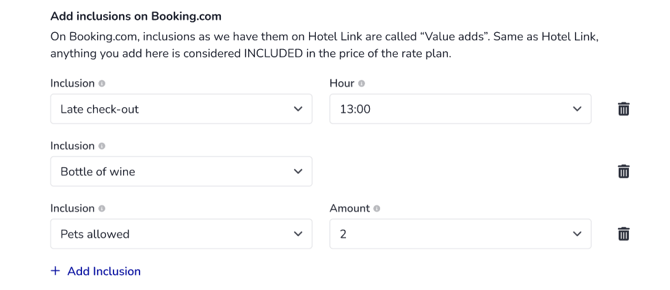
(6): Add inclusions on Booking.com (optional): Add Value Adds/ Inclusions to Booking.com (same as Hotel Link “Value adds”). You can add items like:
-
Inclusion (e.g., Late check-out, Bottle of wine, Pets allowed)
-
Hour/ Amount (depending on the item)
-
Add more using '+ Add inclusion'.
For example:
4. Once done, click 'Map Rate Plan to Booking.com'.
The steps are the same for Option 2: Create a new rate plan on Booking.com. The 'Map Rate Plan to Booking.com' button will be changed to 'Create Rate Plan on Booking.com' accordingly.
Note:
A Booking.com rate plan can be linked to multiple Hotel Link's rate plans, as long as they are not under the same room type.
Update room/rate plan content for Booking.com
In case you want to update the content for room type/rate plan, you can make changes for the following fields:
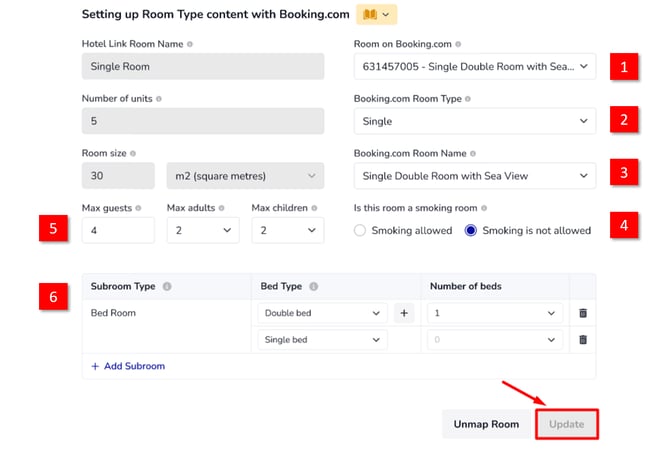
After that, click Update so that the content will apply for Booking.com.
Unmap room/rate plan content for Booking.com
In case you don't want to map the room/rate plan content for Booking.com anymore, you can simply click 'Unmap room/rate plan' at the end of the content page. This action allows users to disconnect the Room/Rate Plan between Hotel Link and Booking.com without deleting the original data on either system.
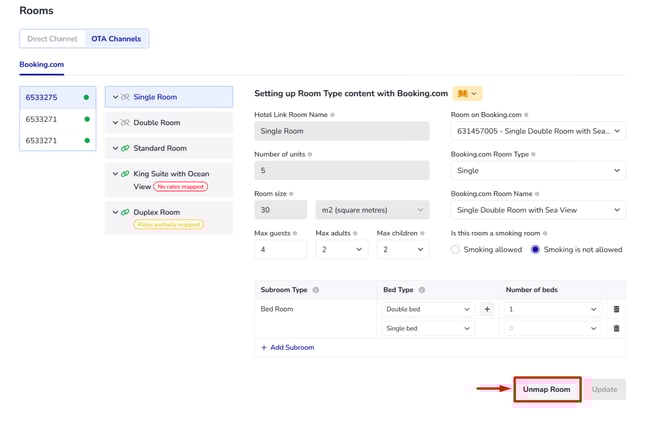
After unmapping a room type content, all rate plans under this room type will also be unmapped within the Hotel Link system. The room type and its associated rate plans will remain on Booking.com, but content synchronization from Hotel Link will stop.
For unmapping a rate plan content, the action will only affect the rate plan content. It will not affect the room type that the rate plan belongs to.