
What is Channel Content Mapping?
This feature helps you set up and link room types and rate plans information between Hotel Link and Trip.com. It makes sure the content such as how many guests (pax), room photos, meals, rate plan conditions, room name, and other room details is the same on Hotel Link and on Trip.com. When you set it up on Hotel Link's end, those room details are synced automatically without accessing to Trip.com and update the content manually.
Cases
There are 3 cases that may apply to your property:
Step-by-step guide
Under Channel Manager tab, click Channel Manager Content Mapping. Based on the cases mentioned above, take the corresponding action that applies to your situation.
Case 1: No rooms or rate plans on Hotel Link's extranet - product list available on Trip.com
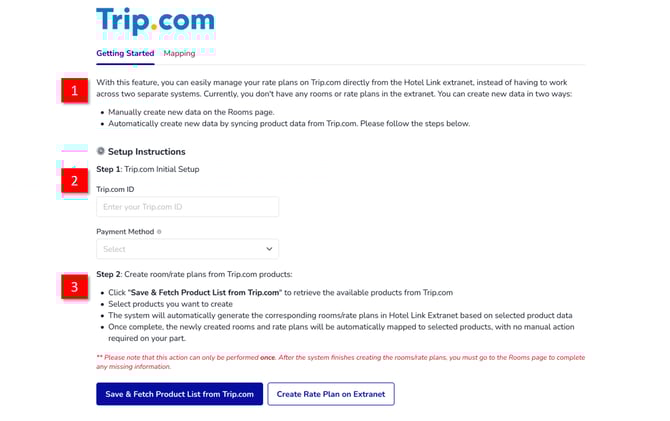
- Read the introduction about your case. This will give you a basic understanding, including the steps you need to follow and whether the room exists in the extranet to create the data.
- Trip.com Initial Setup:
- Trip.com ID: Enter your Trip.com property ID
- Payment method: Select the payment method to send to Trip.com. There are 2 types: Prepay online, Pay at hotel. The payment method is applied for all of the Trip.com's rate plans created from our end to Trip.com's end. The existing rate plans on Trip.com's end will be not affected. To change the payment method for the existing rate plans on Trip.com's end, please edit it on Trip.com's end.
- Create room/rate plans from Trip.com products:
- Read the instructions in this section to create room/rate plans from Trip.com products successfully.
- There are 2 buttons:
- Save & Fetch Product List from Trip.com: This button is to save Trip.com ID and then retrieve the available products list from Trip.com. A popup window will then appear, allowing you to select the products for which you want to create rooms or rate plans. Click 'Create' to create room/rate plan accordingly in extranet.
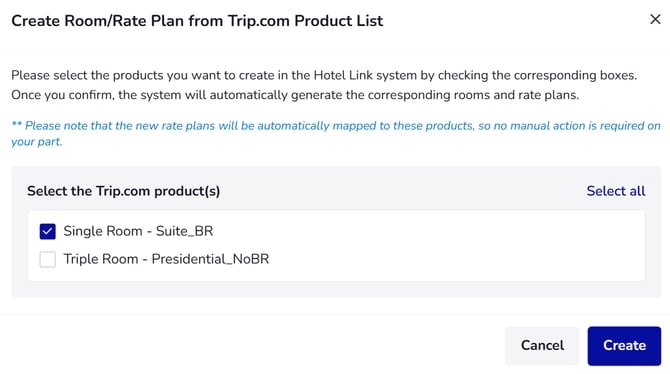
Once complete, the newly created rooms and rate plans will be automatically mapped to selected products, with no manual action required on your part.
- Save & Fetch Product List from Trip.com: This button is to save Trip.com ID and then retrieve the available products list from Trip.com. A popup window will then appear, allowing you to select the products for which you want to create rooms or rate plans. Click 'Create' to create room/rate plan accordingly in extranet.
-
- Create Rate Plan on Extranet: This button is to redirect you to the Booking Engine > Rooms page to manually create room/rate plans.
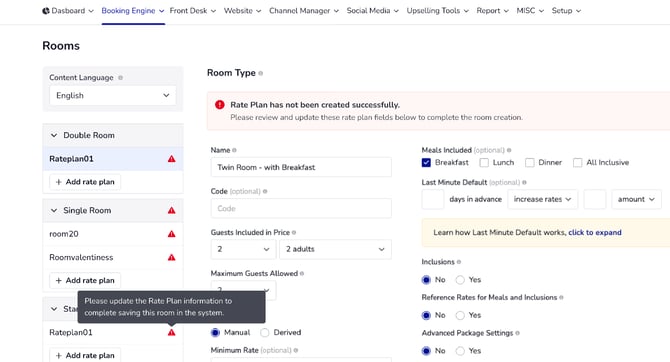
- Once the rooms and rate plans have been created successfully, our system will automatically map the Trip.com products with the corresponding Hotel Link rate plans on the Mapping tab.
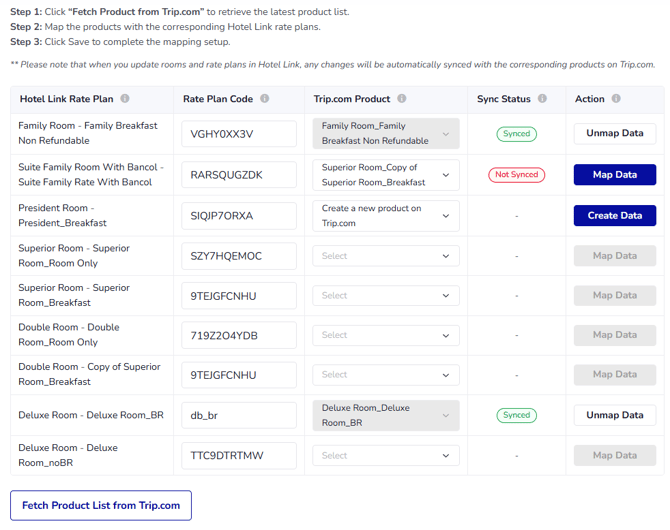
4. Mapping process:
- On the mapping page, click 'Fetch product from Trip.com' button to get the latest product list.
- Then, map the products with the corresponding Hotel Link rate plans by selecting a product in the dropdown.
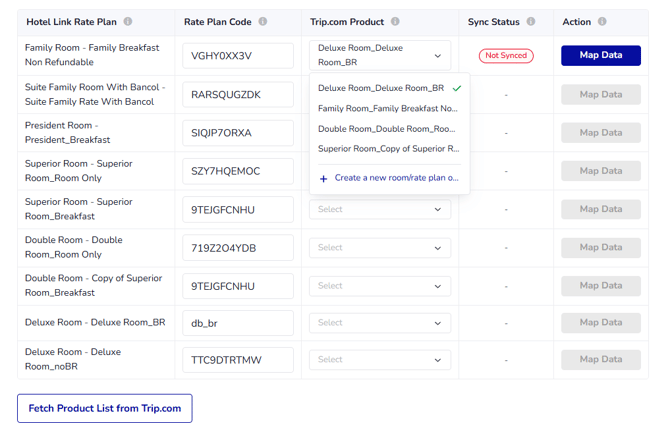
Note: 1 Trip.com's product is mapped with only 1 Hotel Link rate plan. Once it is mapped, that product will no more appear in the dropdown.
- After selecting a product in the Trip.com Product column, use the button in the Action column to update the sync status:
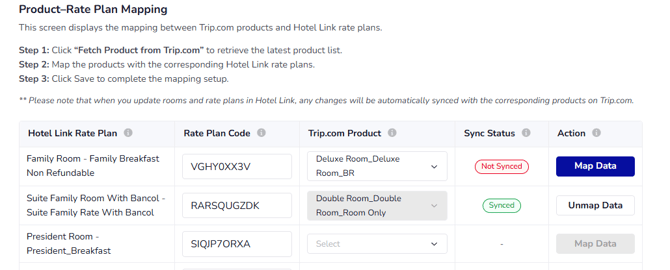
| Sync Status | Action | What you should do |
| Not synced | Map data | Click Map Data to connect your rate plan with the selected Trip.com product. Once done, it will become 'Synced' status. |
| Synced | Unmap data | Click Unmap Data if you want to remove the current mapping between your rate plan and the Trip.com product. Once done, it will become "-" status. |
| - | Create data |
1. Select “Create a new room/ rate plan on Trip.com” in the Trip.com product dropdown. 2. In the action column, click 'Create Data' to create a new room and rate plan on Trip.com’s side. At this stage, you will need to create rate plan code as well. For more details, check Create rate plan code section below. |
For example:
Important note:
You cannot delete a room or rate plan on the Booking Engine > Rooms page if its content (room information, amenities, etc.) is currently mapped to a Trip.com product. If you click 'Delete', there will be a warning popup. For example:
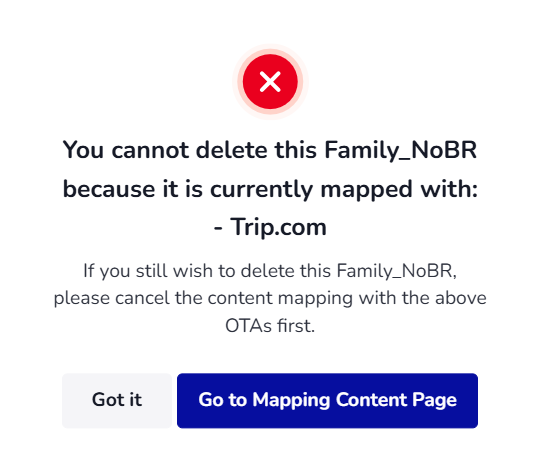
-> To delete that room or rate plan, you need to access the Mapping content page and cancel/unmap the rate plan’s mapping first. The steps are shown above.
Case 2: Rooms and rate plans already exist Hotel Link's extranet - product list available on Trip.com
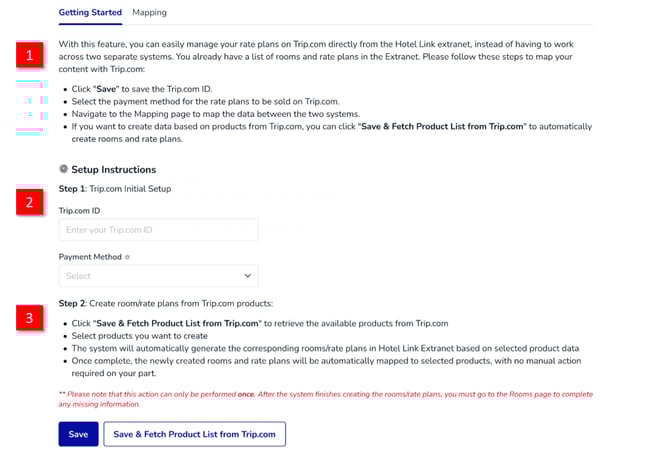
- Read the introduction about your case. This will give you a basic understanding, including the steps you need to follow and whether the room exists in the extranet to create the data.
- Trip.com Initial Setup:
- Trip.com ID: Enter your Trip.com property ID
- Payment method: Select the payment method to send to Trip.com. There are 2 types: Prepay online, Pay at hotel. The payment method is applied for all of the Trip.com's rate plans created from our end to Trip.com's end. The existing rate plans on Trip.com's end will be not affected. To change the payment method for the existing rate plans on Trip.com's end, please edit it on Trip.com's end.
- Create room/rate plans from Trip.com products:
- Read the instructions in this section to create room/rate plans from Trip.com products successfully.
- There are 2 options:
- Click 'Save' to save the Trip.com property information. Then, go to mapping page and click 'Fetch Product List from Trip.com' to retrieve the available products list from Trip.com.
- Click 'Save & Fetch Product List from Trip.com' to save Trip.com ID and then retrieve the available products list from Trip.com. A popup window will then appear, allowing you to select the products for which you want to create rooms or rate plans. Click 'Create' to create room/rate plan accordingly in extranet.
Once complete, the newly created rooms and rate plans will be automatically mapped to selected products, with no manual action required on your part.
- Mapping process: This process is the same with Case 1.
Case 3: Rooms and rate plans already exist on Hotel Link's extranet - want to create products from the extranet to Trip.com
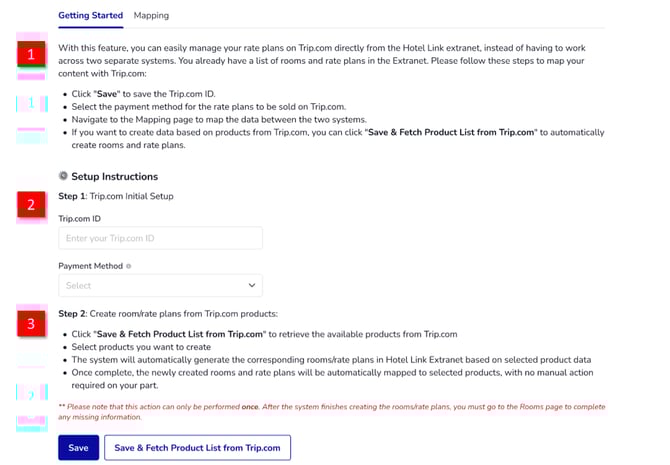
- Read the introduction about your case. This will give you a basic understanding, including the steps you need to follow and whether the room exists in the extranet to create the data.
- Trip.com Initial Setup:
- Trip.com ID: Enter your Trip.com property ID
- Payment method: Select the payment method to send to Trip.com. There are 2 types: Prepay online, Pay at hotel. The payment method is applied for all of the Trip.com's rate plans created from our end to Trip.com's end. The existing rate plans on Trip.com's end will be not affected. To change the payment method for the existing rate plans on Trip.com's end, please edit it on Trip.com's end.
- Create room/rate plans from Trip.com products:
- Read the instructions in this section to create room/rate plans from Trip.com products successfully.
- There are 2 options:
- Click 'Save' to save the Trip.com property information. Then, go to mapping page and click 'Fetch Product List from Trip.com' to retrieve the available products list from Trip.com.
- Click 'Save & Fetch Product List from Trip.com' to save Trip.com ID and then retrieve the available products list from Trip.com. However, since there is no Trip.com product available, the table will be empty as following:
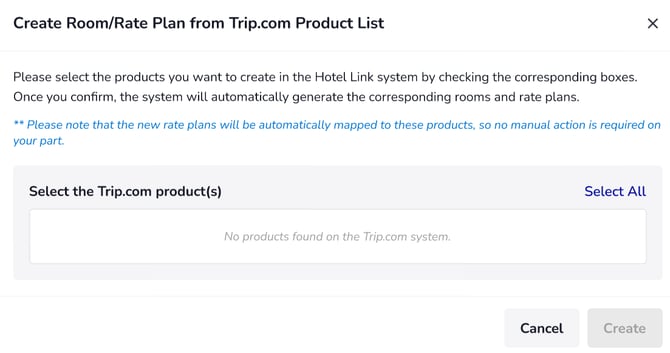
In this situation, you can proceed directly to Step 4.
- Mapping process:
- On the mapping page, select Create a new room/ rate plan on Trip.com from the Trip.com product dropdown. Please note that this is the only option available because there are currently no existing Trip.com products.
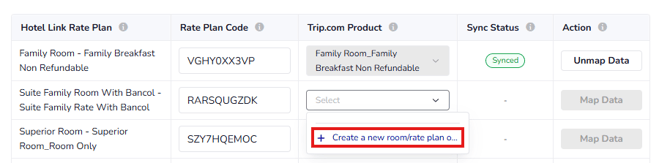
- After that, click 'Create data' in the Action column. Our system will create the following data one by one:
- A rate plan code: There will be 2 cases to have this rate plan code:
- Case 1: Your rate plan already has a rate plan code: If there is already rate plan code in the Booking Engine > Rooms page > Rate plan page > Rate plan code field, our system will get this code to create data on Trip.com.
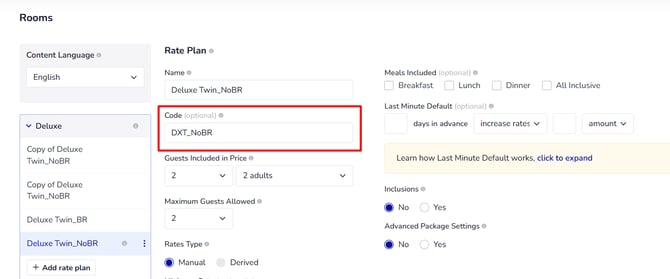
- Case 2: Your rate plan does not have a rate plan code:
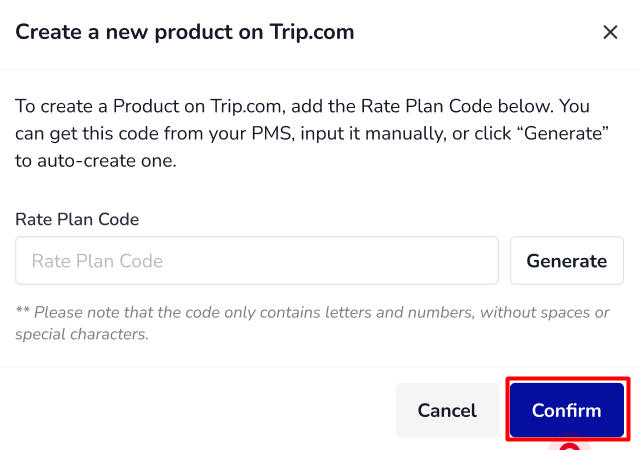 A 'Create a new room/ rate plan on Trip.com' popup will show up. You will have 2 options to create a rate plan code:
(1) Manually input the code or
(2) Click 'Generate' to automatically create and fill in the Rate plan Code column.
Once you click “Confirm” in the popup, the system saves the newly generated rate plan code to the corresponding rate plan’s data.
- Case 1: Your rate plan already has a rate plan code: If there is already rate plan code in the Booking Engine > Rooms page > Rate plan page > Rate plan code field, our system will get this code to create data on Trip.com.
- A rate plan code: There will be 2 cases to have this rate plan code:
- On the mapping page, select Create a new room/ rate plan on Trip.com from the Trip.com product dropdown. Please note that this is the only option available because there are currently no existing Trip.com products.
-
- A new room, rate plan on Trip.com's end based on the room, rate plan information accordingly.
- Once complete, please contact Trip.com team to map the newly created room and rate plan to the Master Room in their system.
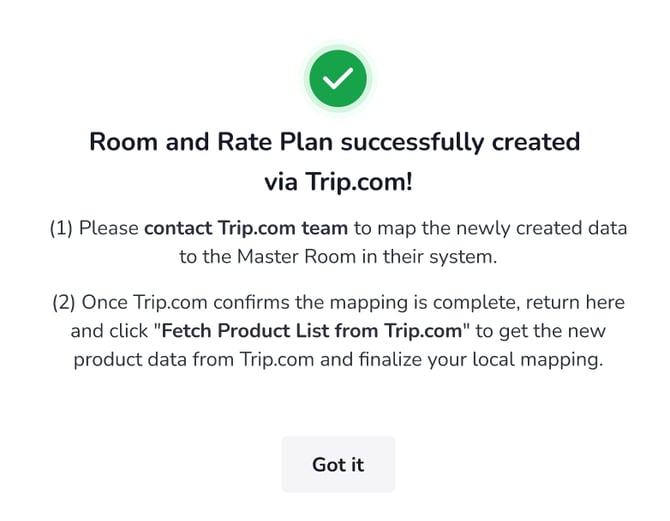
- After Trip.com confirms the room and rate plans have been created successfully on their end, you need to access the mapping page in our extranet and click 'Create a new product on Trip.com' for the rate plan that you have just created a new room/rate plan on Trip.com.
- After that, click 'Create data' in the Action column to create a product list accordingly on Trip.com.
- Once complete, you need to access the mapping page in our extranet and click 'Fetch product list from Trip.com' to get the new product data from Trip.com.
- Then, you can continue with the mapping process as normal like case 1.
Note: 'Create a new product on Trip.com' option is hidden in case there are rooms and rate plans existing on Trip.com's end. In this case, you need to click 'Fetch product list from Trip.com' to get the product list.
Steps to edit the existing rate plan code on Extranet
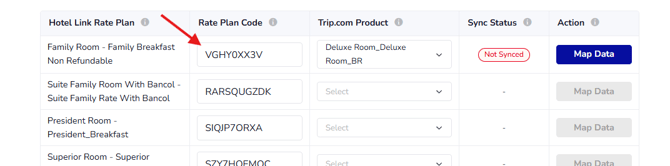
In case you want to edit an existing rate plan code of a rate plan that has been mapped with Trip.com's product, please follow the steps below:
- Go to the Booking Engine > Rooms page.
- Select the rate plan accordingly that you want to update the rate plan code.
- In the rate plan code field, enter the new rate plan code that you want to replace the existing rate plan code.
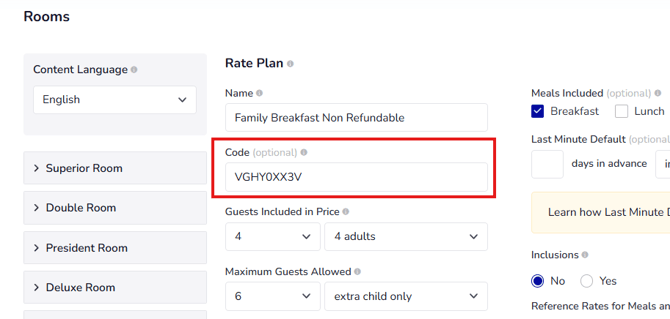
- Then click 'Save'.
The new rate plan code will be automatically filled in the Content Mapping page. The connection will be deactivated. You need to re-map the rate plan on the Content mapping page. In case you want to update the code for second time onwards, please contact Hotel Link Global Support team (support@hotellinksolutions.com) for better assistance.
During the content mapping process for Trip.com, if you need any assistance, please contact the Hotel Link Global Support team (support@hotellinksolutions.com) for better assistance.