
Overview: 2 types of promotions
There are two types of Airbnb Promotions available to hosts: the New Listing Promotion and Custom Promotions.
-
The New Listing Promotion is the only promotion type you can activate through Hotel Link.
-
Custom Promotions need to be created manually inside Airbnb. To learn more about the Custom promotion that hosts can directly apply on the Airbnb UI, please refer to this Help Center article from Airbnb.
In this article, we will focus on The New Listing Promotion, which can be activated directly from the Airbnb Promotion tab in Hotel Link.
New Listing Promotion
The New Listing promotion applies a 20% discount to a new listing’s next three bookings when applied. In order to apply the New Listing promotion, the listing must meet the following requirements:
- Smart Pricing must be off
- Listing must have less than three bookings (of any status)
The promotion automatically expires once the listing has three bookings (of any status).
Promotions take priority and do not combine. Only one promotion or discount applies per booking. For example, if your listing has both a New Listing Promotion and a last-minute discount active at the same time, guests will only receive the New Listing Promotion - not both.
What's on this tab
To access this feature, please follow the steps as following:
- Access Booking Engine > Special Offers page.
- Go to Airbnb > select Promotions tab.
On this page, you will see a list of retrieved promotions for your listings with the corresponding status as below:
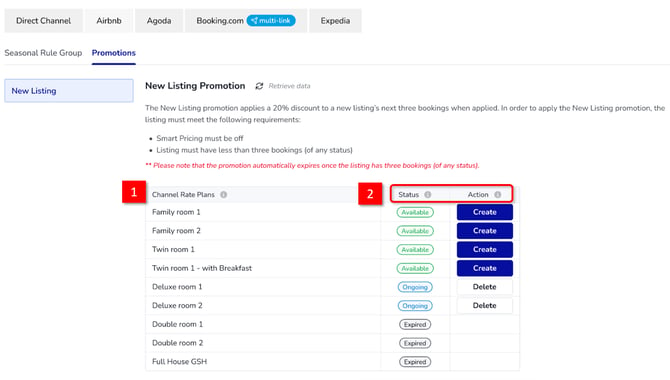
(1) Channel rate plans: The retrieved listings on Airbnb that mapped with Hotel Link rate plans
(2) Promotion status - Corresponding actions:
|
Promotion status |
Corresponding action |
|
AVAILABLE: There is no active promotion for the corresponding listing/rate plan |
Create: You can create a new promotion for this listing. |
|
ONGOING: Promotion is currently active on Airbnb |
Delete: You can delete an ongoing promotion. |
|
EXPIRED: Promotion is expired or deleted. |
There is no action needed. |
Note: Promotion status may vary when you refresh the page. This is to get the latest promotion status for the listings.
Create a New Listing Promotion
To create a promotion, please follow the steps below:
- Access Booking Engine > Special Offers page.
- Go to Airbnb > select Promotions tab.
- For Available promotion status, click 'Create'. Our system will create a promotion accordingly.
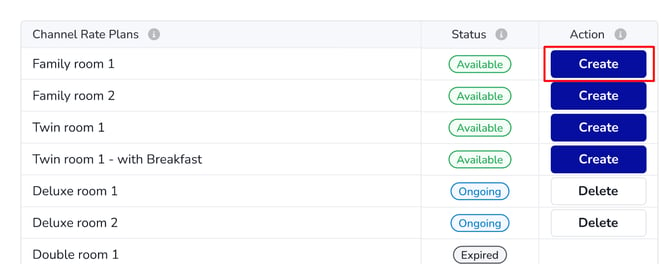
- Once complete, click 'Retrieve data'.
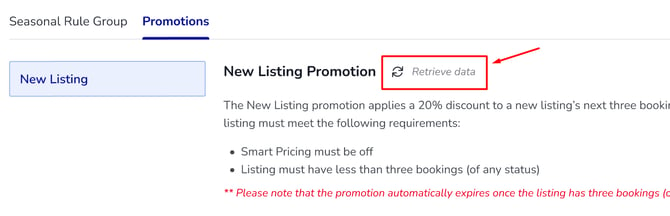
- If successful: The promotion status will be changed from Available to Ongoing.
- If failed: Please contact your local partner to send a ticket to Global Support Team (support@hotellinksolutions.com) for further investigation.
Delete a New Listing Promotion
To delete a promotion, please follow the steps below:
- Access Booking Engine > Special Offers page.
- Go to Airbnb > select Promotions tab.
- For Ongoing promotion status, click 'Delete'. Our system will delete the active promotion accordingly.
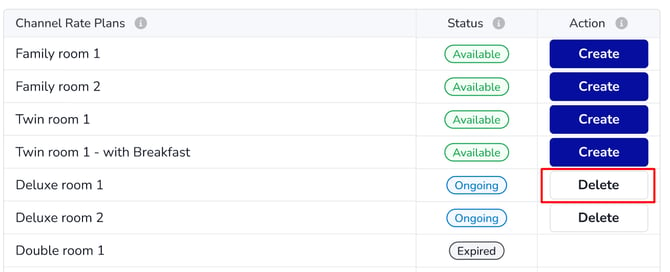
- Once complete, click 'Retrieve data'.
- If successful: The promotion status will be changed from Ongoing to Expired.
- If failed: Please contact your local partner to send a ticket to Global Support Team (support@hotellinksolutions.com) for further investigation.
If you have not connected to Airbnb, please read this article for more details.