
To access it, go to Reports > Payment Reports > Hotel Link Pay Transaction Report.
Searching for transactions
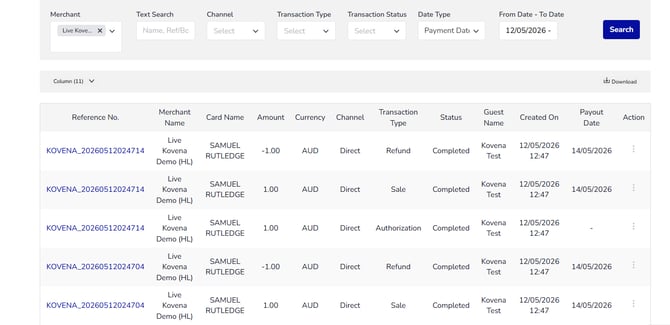
To search for Hotel Link Pay transactions, please take the following steps:
-
Go to Reports > Payment Reports > Hotel Link Pay Transaction Report.
-
In lthe report, use the following fields to find specific transactions:

- Merchant: If you manage multiple properties, you can select multiple hotels that you manage from the list.
- Text Search: Use this field to search transactions by the guest name or booking reference number.
- Channel: Select the payment source that you received the payment by Sync, Direct, Terminal, Virtual Terminal, and Hosted Payment.
- Transaction Type: Filter transactions by type, 3DS, Cancel, Capture, Refund, Sale, and Wallet.
- Transaction Status: Filter by status Cancelled, Completed, Declined, Failed, Pending, and Refunded.
- Date Type: Choose the criteria for the date range by check-in date, check-out date, or payment date.
- Date Range: Specify the time period for the search.
- Once done, click 'Search'.
The report displays the following information for each transaction:
Viewing full transaction details
Next to the booking reference that you want to view details, in the Acion menu, click on the 3-dot action. After that, click 'Details' to open a popup with complete details, organized into three sections:
For example: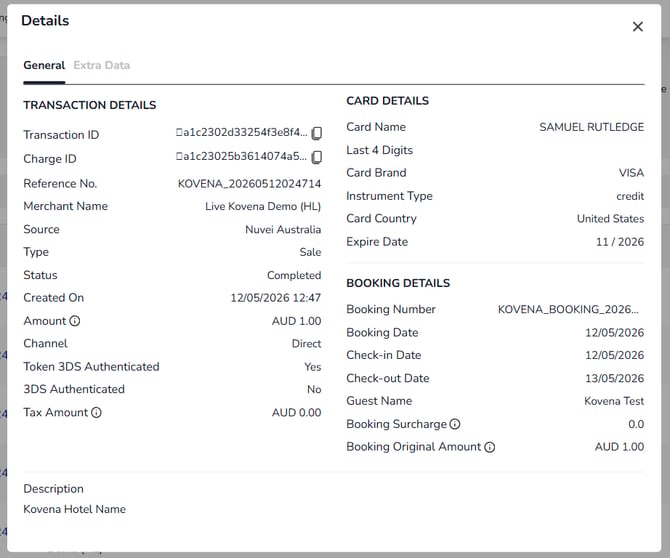
If you are unable to find the transaction you are looking for, please contact Hotel Link Global Support Team at support@hotellinksolutions.com for better assistance.