
What is PriceLabs?
PriceLabs is a Revenue Management System (RMS) that analyzes market data and your own performance to suggest optimised room prices.
For more details on PriceLabs, please check their website.
Benefits when connecting with PriceLabs
When connecting with PriceLabs, you can:
- Create and map your rooms and rate plans between Hotel Link and PriceLabs in one place.
- Send your booking history and ongoing reservations to PriceLabs so its recommendations are based on your real data.
- View daily PriceLabs price suggestions (Min, Base, Max) directly inside the Extranet.
Requirements to activate PriceLabs connection
- An active PriceLabs account: You need a registered PriceLabs account with the email address you plan to use for the connection. If you do not have one yet, sign up at https://pricelabs.co.
- At least one room and one rate plan in Hotel Link: Your hotel must have at least one room and one rate plan configured in Hotel Link before connecting.
- Have data fully updated for 365 days: PriceLabs can only generate accurate recommendations for your listings if there is base rate setup across the whole year. Please check Rates & Availability page and update both availability and rates for 365 days before activating the PriceLabs connection.
- Correct default currency: Make sure your Rate Currency setting in Hotel Link is correct. PriceLabs will use this currency for the connection and it cannot be edited from the connection screen.
- A default rate plan selected per room: Decide only one rate plan per room can be sent to PriceLabs as the default.
Note: For updating data for 365 days to PriceLabs, make sure to follow these requirements:
- Update data for a full 365 days, or more if you prefer.
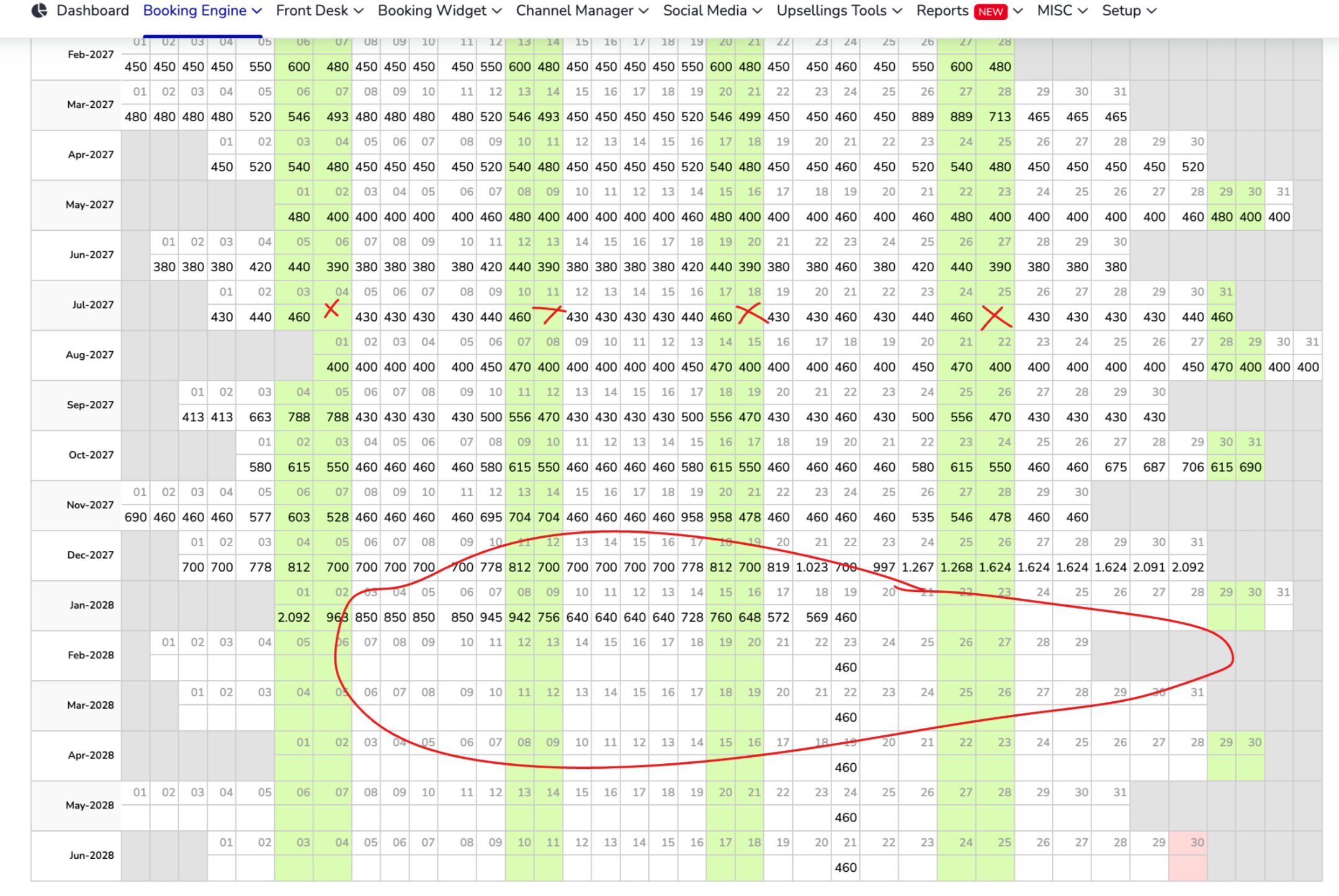
- Data must be filled in for every single day within your selected date range. There should be no gaps. If the data is inconsistent or some days are left blank within that range (as shown in the screenshot below), the update will fail.
Step-by-step: Connecting with PriceLabs
Step 1: Connect Hotel Link in PriceLabs:
- Log into PriceLabs.
- Click "Add your listings" (if you have no listings) or "Add/Re-import Listings" (if you already have listings).
- Select "PMS / Channel Manager" and choose Hotel Link from the dropdown.
- Tick the checkbox to "Allow Hotel Link to add listings to your PriceLabs account." Then click Save.
Step 2: Connect & Setup in Hotel Link:
- Log in to your Hotel Link account.
- Navigate to Upselling tools → Revenue Management → PriceLabs.
- Read the Instructions tab first to know about the cost of PriceLabs. The cost of PriceLabs varies depending on the number of Synced listings in any billing cycle and the location of these listings. Once you are ready, proceed to the mapping step.
- Mapping step:
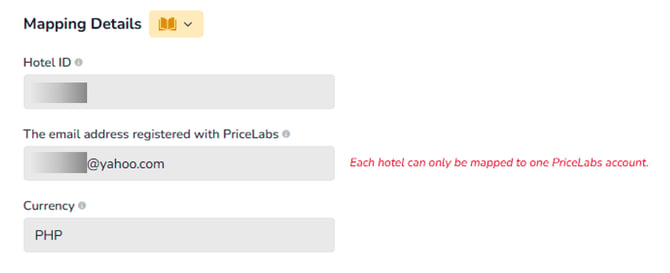
- Enter your PriceLabs email: Enter the email address you used to register your PriceLabs account. The email address can be entered once. After you save it, the field becomes read-only.
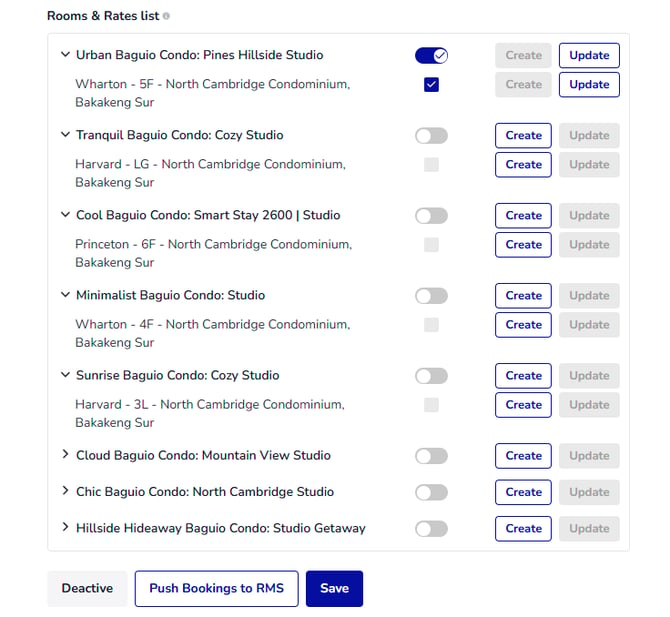
- Create a room: Select the rooms and rate plans you would like to connect with PriceLabs and click on 'Create'. After successfully creating it, you can set the Room to 'Available' or 'Unavailable' by toggling the switch.
- Select at least one rate plan to sync prices with PriceLabs.
- Once you have completed the steps, click Save to store your setup.
- Additional step for non Front Desk users: Fill in the Maximum Room Quantity popup:
- When you click Save, the system will automatically check whether all rooms connected to PriceLabs have the Max Rooms Available field in Rooms setup filled in. PriceLabs requires “Max Rooms Available” data in order to successfully sync both pricing and availability.
- If any room is missing this information, a popup will appear listing all affected rooms. You will need to fill in the required fields before saving can proceed. Depending on your room type, you will see the following fields:
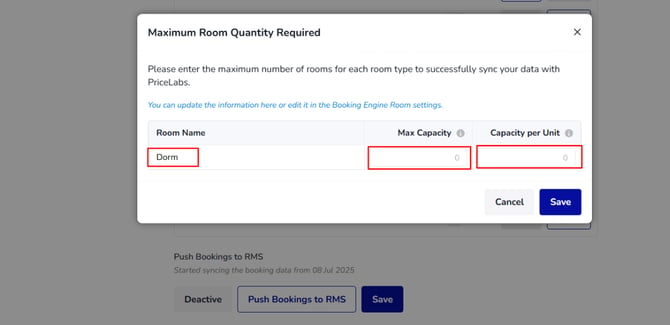
- Apartment, Bungalow, Bure, Cabin, Campsite, Chalet, Cottage, House, Room, Tent, Villa: Enter the Max Capacity for each affected room.
- Dorm, Other: Enter both the Max Capacity and the Capacity per Unit for each affected room.
Once connected, your created room types will appear as listings in your PriceLabs dashboard.
- Click the 'Push Bookings to RMS' button.
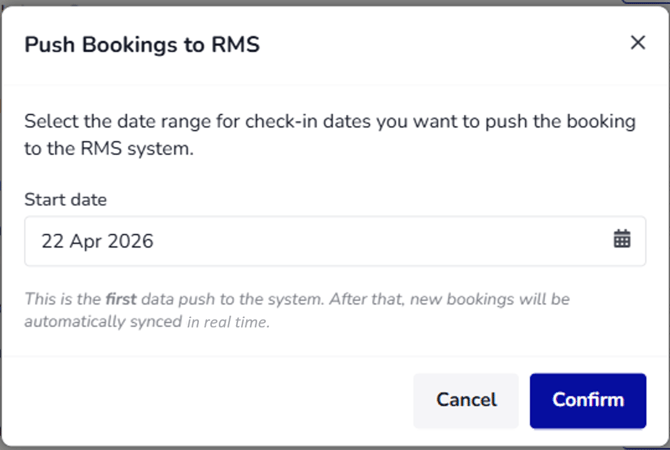
- Select the start date to push all managed bookings (from past to future) into the PriceLabs system.
- Click 'Confirm'. Hotel Link pushes every booking with a check-in date from the chosen day onwards, including all future bookings.
Step 3: Review & Setup PriceLabs:
When a new room is first pulled into PriceLabs via an integration, the Sync Price toggle is automatically set to OFF.

After that, you need to review the pricing recommendations, and adjust their configurations before manually toggling it ON to push live prices to Hotel Link. Here is how:
- Log in PriceLabs.
- Under Dynamic Pricing Pricing Dashboard, click Quick Filters > PMS Filters > Hotel Link.
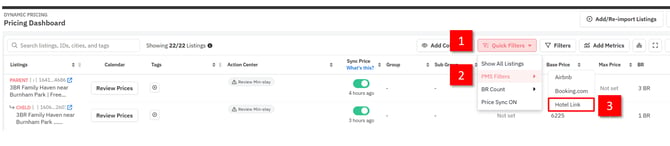
- Select the newly created room and click 'Review Prices'. You can review the pricing recommendations, and adjust your configurations.

- When you are ready, switch the 'Sync Price' toggle to ON.

Once the connection is live, PriceLabs starts producing pricing suggestions. The Price Feed tab is where you read them. To know how to use Price Feed tab, please read this article.
Deactivate connection
To deactivate the PriceLabs connection, you need to disconnect from both Hotel Link and PriceLabs.
-
In Hotel Link:
-
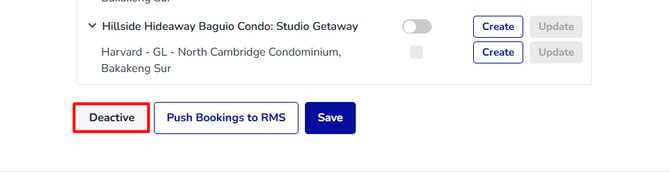
Click Deactive. Your existing mapping configuration will be kept, so if you reactivate later, you will not need to repeat the initial setup steps.
-
-
In PriceLabs (only when you want to deactivate connection completely):
- Set the Sync Price toggle to OFF for the listing you want to deactivate.
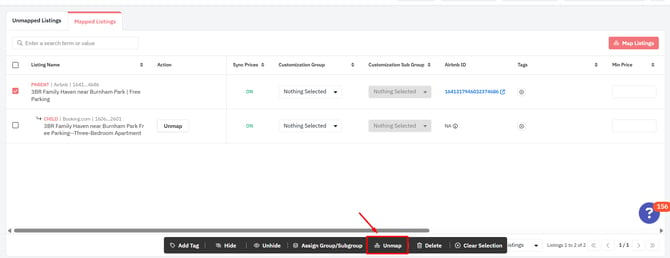
- Unmap the listing to avoid any configuration issues. To unmap the listing, you need to:
- Go to https://app.pricelabs.co/mappings > Select Mapped Listings tab
- Select the listing that you want to unmap.
- Click Unmap.
If you encounter any errors when connecting with PriceLabs, please contact us via support@hotellinksolutions.com for better assistance.